SteadMatch / Cash application

Remittance matching for QuickBooks Online.

Read the remittance. Find the invoices. Review the differences. Turn check and ACH payment advice into clear invoice allocations and validated QuickBooks payment records.

From $149/month after trial · Credit card required
Start in dry-run mode before enabling live posting.

Check & ACH remittancesMulti-invoice paymentsExisting credit memos
PDF

Customer remittance

One ACH · six invoice references

Example
INV-41001$3,250.00
INV-41002$2,450.00
INV-41003$2,100.00

+ 3 more invoices

SteadMatch organizes the allocation

6 invoice allocations
$12,500.00
Existing credit memo
−$500.00
QuickBooksPayment preview

Cash received

$12,000.00

Receive PaymentReview before recording
Fictional example. Proposed allocation only; nothing posted.

From remittance to record

Watch the pieces come together.

Interactive workflowSelect a step below
SteadMatchYour remittance workspace
QuickBooksYour accounting system
01 / 04

Start with the remittance.

Extract the payer, amounts and invoice references from the source document.

Workflow illustration · Automatic posting is optional.

One receipt. The whole story.

The bank tells you what arrived.
The remittance tells you what it pays.

A single deposit can cover dozens of invoices, a credit memo, and a deduction. SteadMatch helps connect that detail to your open QuickBooks invoices, with a specific reason beside each item that needs attention.

  1. 01 / Capture

    Bring the remittance

    Forward payment emails or upload remittance PDFs and check scans. Keep the source document with the payment.

  2. 02 / Match

    Find the invoices

    Extract references and amounts, then compare them with the customer's open QuickBooks invoices.

  3. 03 / Review

    Review the differences

    Check deductions, existing credits, and unclear references. See what remains open before accepting an allocation.

  4. 04 / Record

    Record the payment

    After validation and authorization, record the cash already received against the selected invoices in QuickBooks.

Automation with a review path

The clear matches move.
The questions come to you.

SteadMatch reads customer remittances and proposes QuickBooks invoice matches. Every plan includes manual approval. Growth and Scale, and one-user trials, also offer optional automatic posting for eligible matches. Unclear payments stay in review.

  1. 01

    Receive the remittance

    Forward an email or upload a PDF or check image.

  2. 02

    Read the payment details

    Extract the payer, cash amount and invoice references.

  3. 03

    Compare open invoices

    Check the customer, allocations and current balances.

Eligible single-invoice match

Proceed under your rules.

With auto-approval enabled, a validated match meeting your configured confidence threshold can post when live posting and safeguards permit. With manual approval selected, it waits for you.

Automatic posting · Growth, Scale and trials

Exception or multi-invoice payment

Pause. Explain. Review.

See the original document, proposed allocations and a specific review reason. Correct references, inspect credits or sync missing invoices, then approve the whole payment. Multi-invoice lump sums currently require review.

See the review workspace →

After authorized posting

A payment record you can verify.

QuickBooks

Check the QuickBooks payment, invoice balances and recorded attachment outcome. Group payments into a deposit when using Undeposited Funds. Your team completes the bank-feed match inside QuickBooks.

Test Mode controls whether anything posts. When it is on, approvals are rehearsals and no payments are written to QuickBooks.

Approval mode controls who approves. Keep automatic intake and matching while requiring a person to approve every payment.

How automatic matching and manual approval work →

Tested workflow · fictional sandbox records

The cash and the credit tell one story.

In our QuickBooks sandbox test, $1,000 cash and a $50 existing credit settled $1,050 across three invoice allocations. We verified the payment, source attachment, deposit and remaining balances. A fictional statement row was then matched to that same deposit inside QuickBooks.

Sandbox validation, not a customer case study or measured customer result. Real inbound email processing was tested separately. A live bank download and one continuous real-customer pilot remain to be verified.

Invoice allocations
$1,050.00
Existing credit applied
−$50.00
Cash received
$1,000.00
Invoice balances left open
$0 · $100 · $0

A partial payment leaves the remaining balance visible. It does not silently write it off.

Your workflow, your pace

Start with clear matches.
Grow into a shared workflow.

Every plan reads your remittances, proposes invoice matches and gives you a complete review path into QuickBooks. Growth adds tools for recurring work and a team.

Compare plans and allowances ↗

Starter · $149/month

Your daily review.

  • 1 user · 200 payments/month
  • Automatic email intake and matching
  • PDF, spreadsheet and scan extraction
  • Individual review and manual posting
  • Source documents and audit trail

Growth · $399/month

Less repeat work. More teamwork.

  • 3 users · 1,000 payments/month
  • Saved payer and invoice-prefix rules
  • Reviewer assignments and comments
  • Bulk approval of eligible payments
  • Optional automatic posting

Try Growth features for 14 days. One user, 50 payments and 250 document pages. Team review begins on paid Growth or Scale.

Start your trial ↗

Card required. Your selected plan begins after the trial unless you cancel. Test Mode blocks QuickBooks writes; automatic posting remains optional and subject to validation. Multi-invoice payments require review.

Inside SteadMatch

See the payment
before it hits the books.

Inspect allocations, remaining balances, credits, and net cash in the actual product interface. Switch between the examples below to see the review in context.

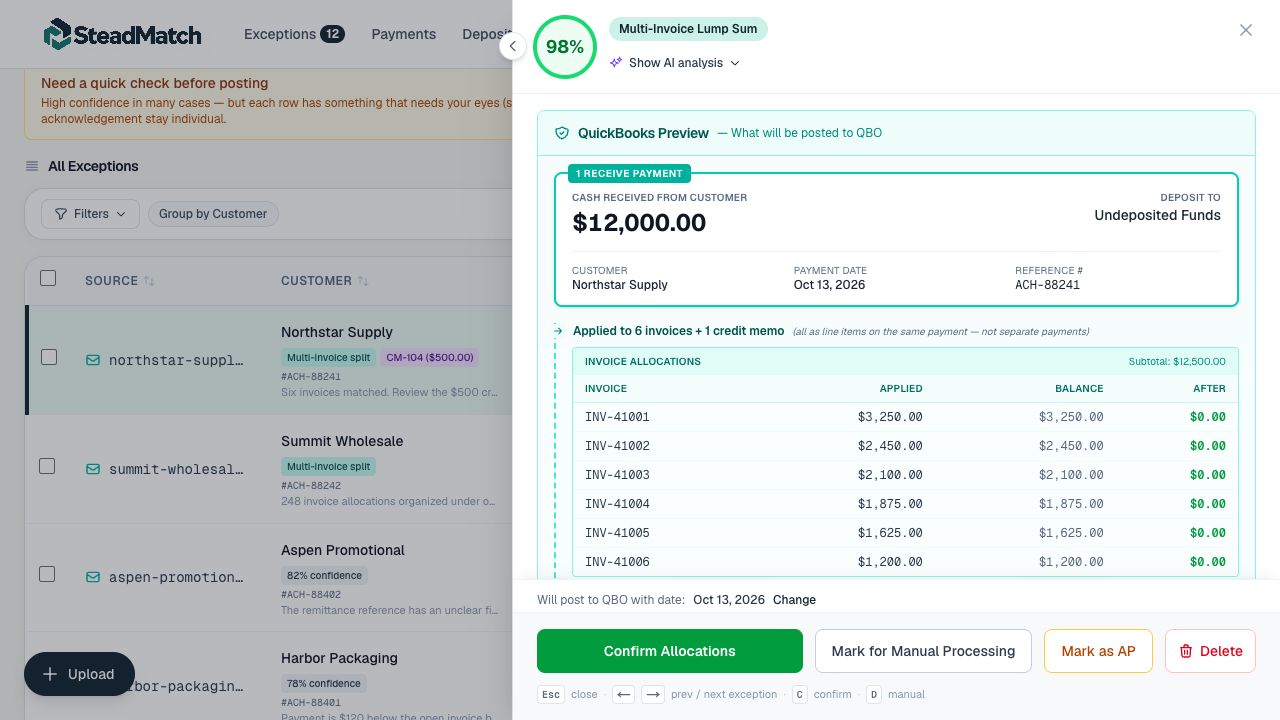
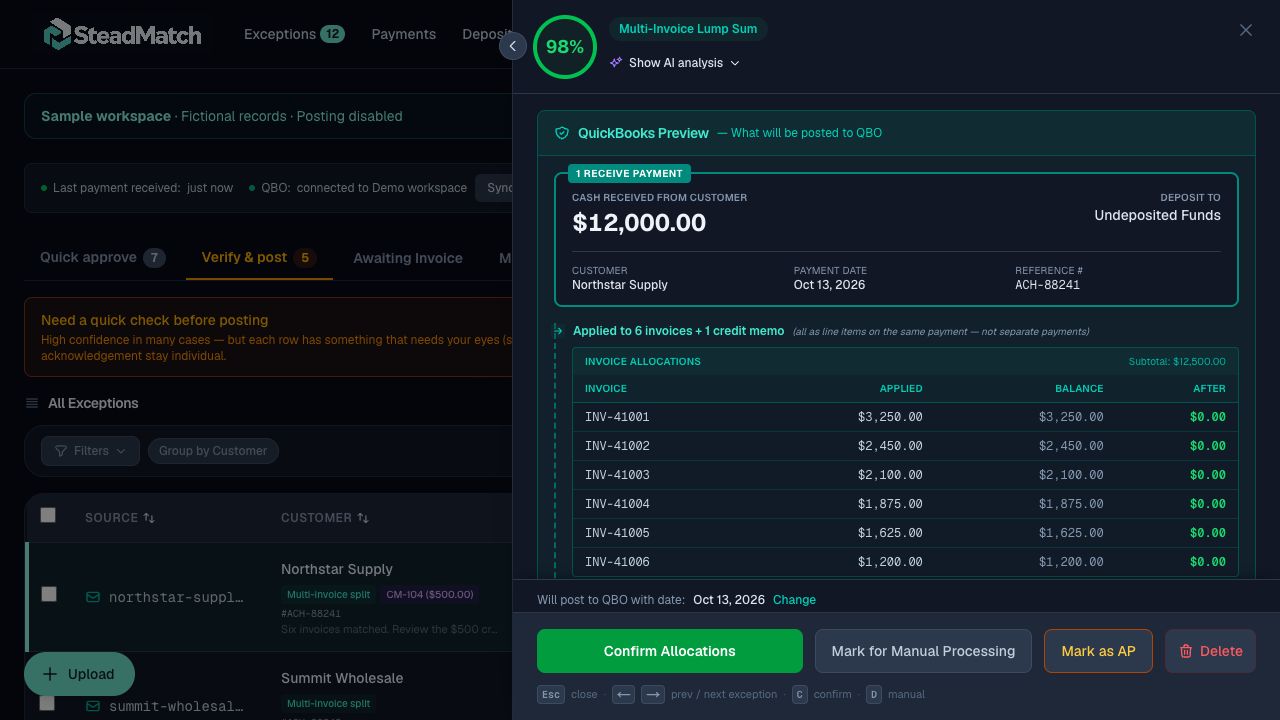
See where every dollar will go.

Review the customer, cash received, invoice allocations, and balances after application before confirming the payment.

SteadMatch payment detail showing a QuickBooks preview for Northstar Supply, six matched invoices, applied amounts, and remaining balances. Light mode.
Actual product interface with fictional demo records and simulated QuickBooks responses. No accounting transactions were posted. Select the image to inspect it at full size.

The differences stay visible

Credits belong
in the same calculation.

Check existing credit memos against the customer and available balance. Review the invoice allocations, credits, and cash together. Missing credits and unexplained deductions remain decisions for your team.

Explore short payments and credits

Illustrative payment allocation

Invoice allocations$12,500
Existing credit memo−$500
Cash received$12,000

Same customer. Available credit verified. Net cash explained.

Fictional figures. An example of the review, not a posted payment.

The QuickBooks side

A payment record.
A traceable allocation.

SteadMatch records money your customer has already paid. When live posting is enabled and validation passes, the result is a QuickBooks customer Payment record—the Receive Payment workflow—with the supported invoice and credit allocations.

Read about access and data handling
01

Start with dry-run

Inspect proposed matches before enabling live posting.

02

Confirm the destination

Use Undeposited Funds for deposit batching or an eligible bank account according to your configured workflow.

03

Follow the evidence

Keep the source document and recorded actions with the payment history.

04

Continue bank matching

Your team reviews the bank transaction against the recorded payment or deposit. Suggested matches depend on the QuickBooks records.

Know the workflow

What SteadMatch supports.

Start with your documents, review the proposed allocations, and verify your QuickBooks results. Here are the controls and limits to discuss before enabling live posting.

Accounting connection
QuickBooks Online through Intuit OAuth and the Accounting API. Current validation scope: US Plus / USD. Other editions, countries and currencies need a workflow review.
Upload formats
PDF, JPEG, PNG, TIFF, WebP, BMP and saved .eml emails, plus direct Excel (.xlsx/.xls) and UTF-8 CSV uploads with a source-cell preview. Spreadsheets: 5MB, up to 10 sheets, 5,000 rows and 40 columns per sheet, with a 100,000-cell workbook limit. Replace formulas with values. Word uploads are not supported.
Email intake
Forward payment emails to your workspace address. Supported PDF, image, Excel and CSV attachments can be processed through the email workflow; document quality and layout affect extraction.
Invoice allocations
Propose allocations across multiple invoices, check customer ownership and current balances, and keep partial payments and unclear references visible for review.
Credits and deductions
Apply supported existing customer credit memos after validation. A missing credit or unexplained deduction needs investigation; it is not automatically written off.
Posting controls
Dry-run mode does not post payments. On Growth, Scale and during one-user trials, eligible validated matches can follow configured automatic-posting rules; lump-sum payments and exceptions require review. A confidence score alone does not authorize a write.
QuickBooks records
Authorized live posting creates customer Payment records for the Receive Payment workflow. Use Undeposited Funds for later deposit grouping, or a configured eligible bank account. Bank-feed matching remains a separate QuickBooks step.
Source evidence
Source documents and recorded actions remain available in SteadMatch. QuickBooks attachment support depends on the intake and posting path; check the attachment outcome separately from payment creation.

Plans and allowances
See current pricing, payment and document-page allowances, seats and trial terms. Invoice lines, payments and document pages are different measures; bring your typical volumes to a demo.

Is it a fit?

For teams with
more lines than time.

A practical fit for QuickBooks Online teams receiving customer checks and ACH payments that cover multiple invoices.

PrintingWholesaleManufacturing

Bring three things to your demo.

  1. 1

    A typical remittance

    Include a straightforward example and one with a credit, deduction, or unclear reference.

  2. 2

    Your payment volume

    An estimate of monthly receipts and the number of invoice lines they usually contain.

  3. 3

    Your review workflow

    Who checks exceptions, where receipts are recorded, and how deposits are grouped.

This page covers incoming customer remittances. Marketplace payout accounting and outgoing vendor bill payments are separate workflows.

Clear answers before you connect

QuickBooks remittance matching, explained.

Can I automate matching but approve every payment myself?

Yes. Starter requires manual approval. On Growth, Scale or during your one-user trial, turn auto-approval off so the dashboard reads Manual approval for all. Email intake, extraction and invoice matching continue; every payment waits for your approval. Test Mode is separate: while it is on, even approved payments do not create QuickBooks payment records.

What happens when a remittance needs review?

SteadMatch keeps it in the review queue with its source document, proposed allocations and a specific reason. Check the payer, invoice references, credits and current balances; correct unresolved details before approving the whole payment. Multi-invoice lump-sum payments currently require review even when extraction confidence is high.

What is remittance matching?

Remittance matching connects a customer's payment advice to the invoices it pays. Cash application is the resulting allocation of money already received to accounts receivable. SteadMatch helps organize both steps for QuickBooks Online teams.

Can one payment cover multiple QuickBooks invoices?

Yes. SteadMatch groups proposed invoice allocations under a payment for the same customer. Review the customer, references, amounts, and current balances before recording the payment. Cross-customer credits and uncertain ownership require investigation.

What remittance formats can I bring?

Bring customer remittance PDFs, check scans, Excel (.xlsx/.xls), UTF-8 CSV, saved payment emails, or forwarded payment emails and their supported attachments. Direct spreadsheet uploads show source cells for inspection before processing; replace formulas with values and keep each spreadsheet under 5MB. Extraction varies by document quality and format. Bring representative documents to a demo so we can assess your workflow.

Does SteadMatch create Receive Payment records?

When live posting is authorized and validation passes, SteadMatch creates QuickBooks customer Payment records, corresponding to the Receive Payment workflow, with invoice allocations and supported existing credit applications. Dry-run results and the demonstrations on this website do not create accounting transactions.

Will QuickBooks automatically match the bank deposit?

A correctly recorded payment or grouped deposit supports your later bank matching workflow. A suggested bank match still depends on the bank transaction, amount, dates, and existing QuickBooks records. SteadMatch does not guarantee an automatic bank-feed match.

Can I inspect the results before enabling live posting?

Yes. Start in dry-run mode to inspect extraction, proposed allocations, credits, and exceptions. Your team verifies the workflow before enabling live posting. SteadMatch records receipts; it does not initiate ACH transfers or collect money from customers.

What does it cost?

Plans start at $149 per month after a card-required 14-day trial. Compare current plan allowances, seats, and terms on the pricing page. A demo can help determine whether your documents and payment volumes are a good fit.

Go deeper into the workflow.

All guides

Bring the remittance. See the match.

Give every payment
a clear place in your books.

Start with a review of your actual workflow. Inspect the results in dry-run mode before enabling live posting.

From $149/month after trial · Credit card required · Compare plans and allowances